

In a previous version of a Professional C# book I’ve written a complete chapter on how to create Windows Services with the .NET Framework. Using .NET Core 3.0, it’s a lot easier to create Windows Services: just a single line of code is needed to convert a background worker to a Windows Service.
See Creating a Windows Service with .NET 6 for a new version!

Create a Worker
With .NET Core 3.0, a background worker can be created using Visual Studio or the dotnet CLI command dotnet new worker.
With this template, a Program class is created that uses the Host class. The method CreateDefaultBuilder is used to setup the dependency injection container, configuration, and logging. The dependency injection container managed by the Host class is configured by invoking the method ConfigureServices. In the generated code, the extension method AddHostedService is used to register a background class that implements the interface IHostedService. This interface is indirectly implemented by the Worker class by deriving from the base class BackgroundService. The interface IHostedService defines the methods StartAsync and StopAsync. Adding a hosted service, invoking the Run method of the host starts the host and in turn invokes the startup of the IHostedService.
public class Program { public static void Main(string[] args) { CreateHostBuilder(args).Build().Run(); } public static IHostBuilder CreateHostBuilder(string[] args) => Host.CreateDefaultBuilder(args) .ConfigureServices((hostContext, services) => { services.AddHostedService<Worker>() .Configure<EventLogSettings>(config => { config.LogName = "Sample Service"; config.SourceName = "Sample Service Source"; }); }); }The
Hostclass is also used by ASP.NET Core 3.0 Web projects. TheWebHostclass from .NET Core 2.0 is replaced by the more genericHostclass.The
Workerclass derives from the classBackgroundService.BackgroundServiceimplements the interfaceIHostedServiceand defines the abstract methodExecuteAsync. This abstract method is called by theStartAsyncmethod in theBackgroundService.StartAsyncis defined by theIHostedServiceinterface. With the implementation of theWorkerclass,ExecuteAsyncuses an endless loop (until cancellation is requested) and writes a log message once a second.public class Worker : BackgroundService { private readonly ILogger<Worker> _logger; public Worker(ILogger<Worker> logger) { _logger = logger; } protected override async Task ExecuteAsync(CancellationToken stoppingToken) { while (!stoppingToken.IsCancellationRequested) { _logger.LogInformation("Worker running at: {time}", DateTimeOffset.Now); await Task.Delay(1000, stoppingToken); } } }The main functionality for the
Hostclass is creating the dependency injection container, configuration, and logging. UsingCreateDefaultBuilder, configuration is read from the configuration files appsettings.json, appsettings.{env.EnvironmentName}.json, environmental variables, and the command line.Logging configuration is read from the section Logging within the configuration settings. Using the worker template, the configuration file appsettings.json defines logging based on the log level – with Microsoft sources to turn on logging for the Warning level, with the exception of Microsoft.Hosting.Lifetime: here logging is turned on for the Information level. The default configuration is also for the Information level:
{ "Logging": { "LogLevel": { "Default": "Information", "Microsoft": "Warning", "Microsoft.Hosting.Lifetime": "Information" } } }If the application runs on a Windows system, the method
CreateDefaultBuilderalso adds logging to the Windows event log and sets a filter provider to only log warnings and more critical issues to this provider.Running the application, log information is written to the console. The worker writes a message every second.
info: WindowsServiceSample.Worker[0] Worker running at: 10/13/2019 10:21:14 +02:00 info: Microsoft.Hosting.Lifetime[0] Application started. Press Ctrl+C to shut down. info: Microsoft.Hosting.Lifetime[0] Hosting environment: Development info: Microsoft.Hosting.Lifetime[0] Content root path: C:\github\MoreSamples\DotnetCore\WindowsServiceSample\WindowsServiceSample info: WindowsServiceSample.Worker[0] Worker running at: 10/13/2019 10:21:15 +02:00 info: WindowsServiceSample.Worker[0] Worker running at: 10/13/2019 10:21:16 +02:00 info: WindowsServiceSample.Worker[0] Worker running at: 10/13/2019 10:21:17 +02:00 info: WindowsServiceSample.Worker[0] Worker running at: 10/13/2019 10:21:18 +02:00 info: WindowsServiceSample.Worker[0]Convert to a Windows Service
To make a Windows Service of this, you just need to add the NuGet package Microsoft.Extensions.Hosting.WindowsServices, and add the method invocation UseWindowsService to the IHostBuilder fluent API:
public static IHostBuilder CreateHostBuilder(string[] args) => Host.CreateDefaultBuilder(args) .ConfigureLogging( options => options.AddFilter<EventLogLoggerProvider>(level => level >= LogLevel.Information)) .ConfigureServices((hostContext, services) => { services.AddHostedService<Worker>() .Configure<EventLogSettings>(config => { config.LogName = "Sample Service"; config.SourceName = "Sample Service Source"; }); }).UseWindowsService();To see information level logging in the Windows event log, the filter is explicitly applied with the
ConfigureLoggingmethod used with the host builder.Installing and Managing the Windows Service
After building the application, the new Windows Service can be published using dotnet publish (or using Visual Studio):
dotnet publish -c Release -o c:\sampleservice
To control Windows Services, the sc command can be used. Creating a new Windows Service is done using sc create passing the name of the service and the binPath parameter referencing the executable:
sc create “Sample Service” binPath=c:\sampleservice\WindowsServiceSample.exe
The status of the service can be queried using the Services MMC, or with the command line sc query:
sc query “Sample Service”
After the service is created, it is stopped and need to be started:
sc start “Sample Service”
To stop and delete the service, the sc stop and sc delete commands can be used.
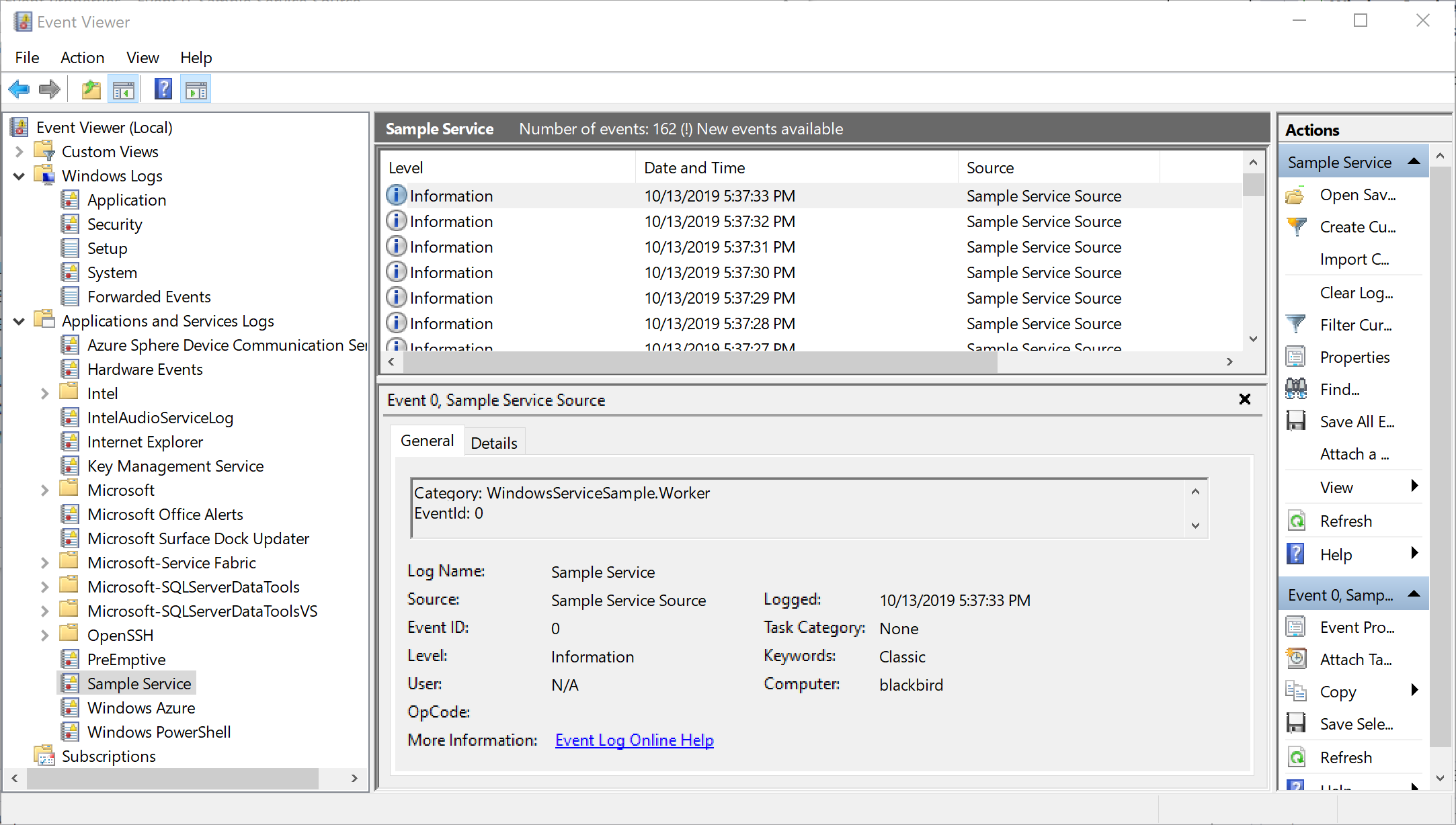
After starting the service, log information can be seen with the Windows Event Viewer:
Web Application as Windows Service
What about hosting Kestrel as a Windows Service? There’s not a lot difference – the package Microsoft.Extensions.Hosting.WindowsServices needs to be added, and the API UseWindowsService invoked.
A Web API project can be created using dotnet new api. This template creates an API returning random weather information.
What’s changed to run the API as a Windows Service is a call to UseWindowsService, and a configuration to what port number the server should listen to. Port 80 is not used to not get in conflict with a local IIS configuration.
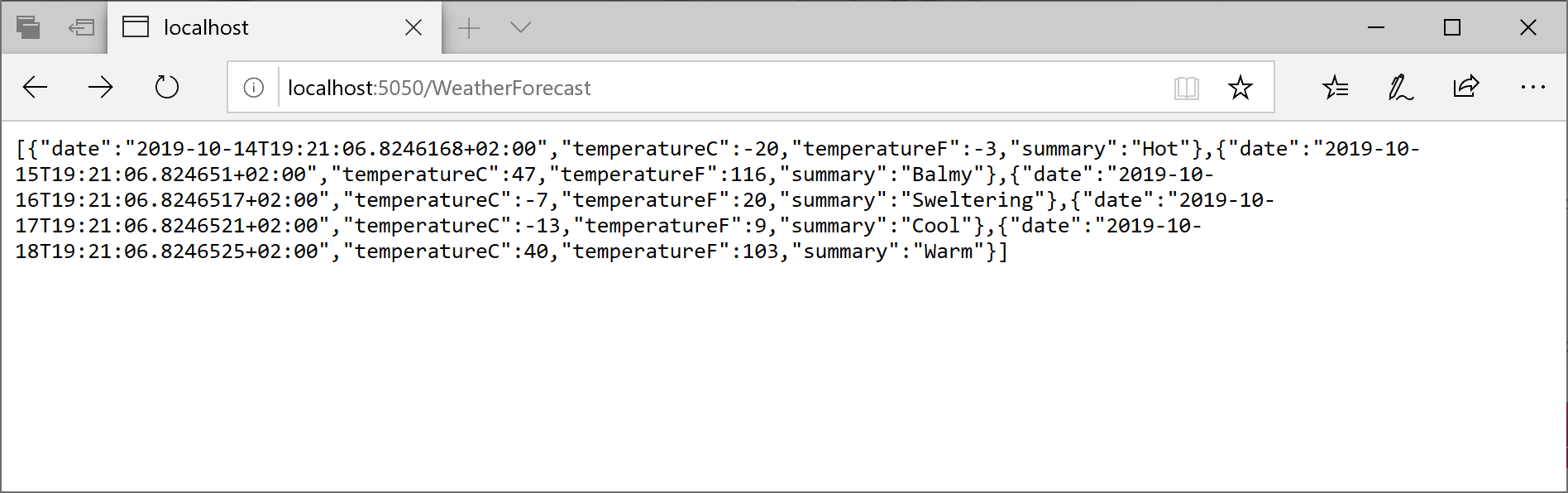
public class Program { public static void Main(string[] args) { CreateHostBuilder(args).Build().Run(); } public static IHostBuilder CreateHostBuilder(string[] args) => Host.CreateDefaultBuilder(args) .ConfigureServices(services => { services.Configure<EventLogSettings>(config => { config.LogName = "Sample API Service"; config.SourceName = "Sample API Service Source"; }); }) .ConfigureWebHostDefaults(webBuilder => { webBuilder.UseStartup<Startup>(); }) .ConfigureWebHost(config => { config.UseUrls("http://*:5050"); }).UseWindowsService(); }Now the service can be build, published, and configured as a Windows Service. Opening a browser to reference the configured port with the controller route WeatherForecast returns JSON information from the API service:
http://localhost:5050/WeatherForecast
Accessing the Windows Service from a different system, the Firewall needs to be configured to allow accessing this port from the outside.
Take away
The
Hostclass which allows configuration, logging, and dependency injection services configuration in one place, also offers an easy way to create Windows Services. Adding the NuGet package Microsoft.Extensions.Hosting.WindowsServices along with the extension method UseWindowsService practically is all what’s needed.This way, background functionality based on the worker template, but also hosting a Kestrel server for offering ASP.NET Core Web applications is an easy task.
While Windows Services are only offered on Windows Systems, similar functionality can be offered on Linux systems. On Linux, the NuGet package Microsoft.Extensions.Hosting.SystemD along with the extension method UseSystemD can be used. Using the UseWindowsService API call on a Linux system doesn’t break the server throwing an exception, but instead it just does nothing on a Linux system. Similarly invoking UseSystemD on Windows, nothing is done. This way it’s easy to create both a Windows Service and a SystemD daemon.
If you’ve read this far, consider buying me a coffee which helps me staying up longer and writing more articles.
You can get the complete sample code.
Enjoy learning and programming!
Christian
Links
Hosting DI Container with .NET Core 3.0
More information on C# and programming .NET Core applications is in my book Professional C# 7 and .NET Core 2.0, and in my workshops.
Windows Cleaners Image ID 24554590 © Andrey Koturanov | Dreamstime.com





 blogs.cninnovation.com
Leave a comment